Music
MusicMe in 1974

All music videos are on the Videos page.
 Bass player |
 Feel the music! |
 My songs |
|
Music Me in 1974 |
(Please click on PENCELAND.com above to go to my main page.) All music videos are on the Videos page. |
|
| My musical history | Berklee | My stereo | Favorite artists | Favorite albums | In Memoriam | Playlists | Links | Ringtones | 60s music | Search | MP3 | Songs | Videos |
|
Music has always been a big part of my life. I grew up playing many instruments for many years—piano, trumpet, French horn, trombone, and eventually guitar, then upright bass
(see my musical history). I was in bands at my
schools, and then after high school I went to college and majored in engineering at University of Idaho (the state school, where both my parents had
gone) in Moscow (Fortunately, I missed this excitement by a few years!) and started playing guitar.
But after 2 years I dropped out of college and moved to Seattle, and I continued to play guitar and eventually becamse a jazz guitarist. Then in 1973 I went back to college in
Boston to study music at Berklee College of Music (I read Downbeat, a jazz magazine, regularly, and Berklee was listed often
as a school that a lot of famous musicians had gone to), where, instead of playing guitar (they had an abundance of guitar players and a shortage of bass players) they asked me to switch to upright bass,
which I did and loved it (I still had long hair when I came to Boston).
I studied at Berklee for 2 years (1973-1975), and I thought I was going to be a professional musician for the rest of my life but then I discovered computers and I studied computer programming at other schools in Metro-Boston and eventually graduated and became a programmer and I followed a different path. I got married to Patti in 1979 and we have grown kids and I am retired! |
| My life as a musician |
|
|
Although I'm not actively performing anymore, music is still one of my first loves and I listen to it hours every day. I can often be seen listening to music on my phone with my earbuds in my ears, especially when I am
walking my dogs, which is a frequent endeavor (twice a day since I retired). The only instrument I have now is a piano, which doesn't get as much attention as it deserves. My grown son, Ben, a very talented keyboardist, plays it when he visits (he actually owns this piano, which we got from his grandmother,
but he has not asked for it yet), and he gave me a 2019 Christmas present of 5 piano lessons from a local teacher, |
| Listening to music |
|
| Studies & quotes... |
|
A study of the neurological wonders behind playing a musical instrument showed enhancement in multiple brain areas.
(Interesting that my instrument, the bass, is shown in the example.) |
|
"The inexpressible depth of music, so easy to understand and yet so inexplicable, is due to the fact that it reproduces all the emotions of our innermost being, but entirely without reality and remote from its pain. . . . Music expresses only the quintessence of life and of its events, never these themselves." — Arthur Schopenhauer |
|
| "Researchers have scanned musicians' brains and found that the 'chills' that they feel when they hear stirring passages of music result from activity in the same parts of the brain stimulated by food and sex." — Drake Bennett, Survival of the harmonious | |
  We had a piano in our house when I
was growing up and I took several years of lessons starting at age 7. My parents later sold that piano and bought a console stereo which we had in the living room for years (I remember my dad sitting next to it in his comfy chair and listening to classical music and reading the New York Times and
Wall Street Journal, which he subscribed to). In 6th grade I took up trumpet (cornet actually), playing in the concert and marching bands. Since I had a lot of drive and practiced diligently I was able to achieve the
first chair position in the band, which I held for three years. When I started high school band (9th grade), there were many older and more experienced trumpet players already there, so with my desire to always be the leader
in the section I switched to French horn, which I played for a year. At the end of my freshman year the lead trombone player graduated
from high school, so with an eye on that position I decided to switch to trombone. My older brother had played trombone before, so we had one
at home, and by practicing a lot during the summer and playing in several outdoor concerts at the bandshell in the Kiwanis park, I got my chops in order and successfully achieved first chair trombone in the high school band in 10th grade. For reasons I don't remember the last two years of high school I
was not in the band, but when I went off to college in 1966, I did what many of my generation were doing—grew my hair long, took up guitar, and joined a rock band. Our band played at campus parties at fraternities and
sororities and we once played at the local high school. We had a piano in our house when I
was growing up and I took several years of lessons starting at age 7. My parents later sold that piano and bought a console stereo which we had in the living room for years (I remember my dad sitting next to it in his comfy chair and listening to classical music and reading the New York Times and
Wall Street Journal, which he subscribed to). In 6th grade I took up trumpet (cornet actually), playing in the concert and marching bands. Since I had a lot of drive and practiced diligently I was able to achieve the
first chair position in the band, which I held for three years. When I started high school band (9th grade), there were many older and more experienced trumpet players already there, so with my desire to always be the leader
in the section I switched to French horn, which I played for a year. At the end of my freshman year the lead trombone player graduated
from high school, so with an eye on that position I decided to switch to trombone. My older brother had played trombone before, so we had one
at home, and by practicing a lot during the summer and playing in several outdoor concerts at the bandshell in the Kiwanis park, I got my chops in order and successfully achieved first chair trombone in the high school band in 10th grade. For reasons I don't remember the last two years of high school I
was not in the band, but when I went off to college in 1966, I did what many of my generation were doing—grew my hair long, took up guitar, and joined a rock band. Our band played at campus parties at fraternities and
sororities and we once played at the local high school.
(After decades apart, in 2015 I reconnected with the lead guitar player in this band (Dave Roylance, or "Duck" as we knew him) on a trip to Boise, and he still remembered the name of our band, "The Creation.") |
| Discovering jazz |
 At this point in my life I was really into flat-picking on acoustic guitar, emulating the style of Clarence White (one of the best flat-picking guitarists, ever), who had a bluegrass band with
his brother, Roland (a mandolin player), named the Kentucky Colonels, and then he went on to play lead guitar
in The Byrds (I saw this band in concert, before his untimely, accidental death in 1973). After hearing Kenny Baker, one of the best fiddle players around (and
even playing with him at a bluegrass festival in 1971) I read that he and Clarence were influenced by Django Reinhardt a great jazz guitarist. I started listening to Django and
violinist Stephane Grappelli (their performing group was The Quintette du Hot Club de France), and though I had been a bluegrass guitarist I started playing in that style and listening to more jazz.
At this point in my life I was really into flat-picking on acoustic guitar, emulating the style of Clarence White (one of the best flat-picking guitarists, ever), who had a bluegrass band with
his brother, Roland (a mandolin player), named the Kentucky Colonels, and then he went on to play lead guitar
in The Byrds (I saw this band in concert, before his untimely, accidental death in 1973). After hearing Kenny Baker, one of the best fiddle players around (and
even playing with him at a bluegrass festival in 1971) I read that he and Clarence were influenced by Django Reinhardt a great jazz guitarist. I started listening to Django and
violinist Stephane Grappelli (their performing group was The Quintette du Hot Club de France), and though I had been a bluegrass guitarist I started playing in that style and listening to more jazz.
In 1968 I had one of my first experiences with hearing outstanding, contemporary jazz performed live at a daytime concert in Seattle's Seward Park, where I heard (and saw) the Charles Lloyd quartet:
|

After several years of playing a variety of improvisational types of music on guitar,  I started playing more and more jazz, and I decided that to better understand this complex music I
wanted to study it in college. I was living in Seattle at the time but the school I chose (which I read about in Downbeat magazine, a jazz magazine) was Berklee College of Music in Boston, one of the
leading jazz schools in the country that a lot of famous musicians had gone to. I went to Boston in 1973 (my 4th cross-country car trip) and when I started at Berklee I was asked
if I would consider switching from guitar to upright bass
because the school had an abundance of guitar players and a shortage of bass players. I made the switch, which turned out to be a good choice because
acoustic bass players at school were always in demand so I was frequently asked to play with people. I studied at Berklee for two
years under jazz bassist's John Neves (he really taught me jazz bass) and John Repucci (very technical lessons, mostly using a bow),
and of course played in many combos. I started playing more and more jazz, and I decided that to better understand this complex music I
wanted to study it in college. I was living in Seattle at the time but the school I chose (which I read about in Downbeat magazine, a jazz magazine) was Berklee College of Music in Boston, one of the
leading jazz schools in the country that a lot of famous musicians had gone to. I went to Boston in 1973 (my 4th cross-country car trip) and when I started at Berklee I was asked
if I would consider switching from guitar to upright bass
because the school had an abundance of guitar players and a shortage of bass players. I made the switch, which turned out to be a good choice because
acoustic bass players at school were always in demand so I was frequently asked to play with people. I studied at Berklee for two
years under jazz bassist's John Neves (he really taught me jazz bass) and John Repucci (very technical lessons, mostly using a bow),
and of course played in many combos.
 Double bass
– (acoustic bass) my instrument Double bass
– (acoustic bass) my instrument My Berklee Days – on the Boston page My Berklee Days – on the Boston page
Berklee buildings when I went there When I went to Berklee (1973-1975) they had 2 buildings, and most of the classes I took were in the 150 Mass. Ave. building, but I did have a few, including my bass lessons, in the 1140 Boylston St. building (the original Berklee building where the administration offices were), and that building also had a store and a library that I spent a lot of time in, and an auditorium that I attended some concerts in. The Berklee Performance Center opened in 1976, shortly after I left Berklee.
They have expanded the campus all over the neighborhood since I was there, here's a map.
The recording and touring bass players that I was most inspired by at that time were three bassists with very distinctive styles
|

|
 Studying music greatly enhances one's appreciation and performing abilities, but it can also put you out of touch with the public's
appreciation of music.
This priceless video says so much about the unenlightened views one encounters in life after a musical education.
Read the great comments on YouTube! Studying music greatly enhances one's appreciation and performing abilities, but it can also put you out of touch with the public's
appreciation of music.
This priceless video says so much about the unenlightened views one encounters in life after a musical education.
Read the great comments on YouTube!
|
| Live jazz in Boston in the 1970s |

While I was at Berklee I went regulary to the local jazz clubs in Boston (sadly many now gone) including
|
 Boston Jazz Scene
 Boston's Jazz HistoryYogi Berra on Jazz – a delightful perspective!
The following jazz clubs in Boston have closed:
|
| Loft jazz |
 My perspective on things has frequently leaned towards the cutting-edge so my taste in music ultimately evolved into the avant−garde style
that was being performed in the 1970s in the jazz lofts
(some photos).
This very non-commercial style of music had a serious following among musicians and some fine recordings of it can be found on the Wildflowers series
(this 5 record vinyl LP set, which I owned, is now on 3 CDs). When these musicians came to Boston, they usually didn't play in the well known
clubs, but they did find that, like New York, Boston had a loft scene, and some of the best music I heard when I was in college was performed in
the jazz lofts. In an Atlantic Monthly article, "Jazz −
Religious and Circus," Francis Davis writes about how many of us viewed the 1970s as the "Golden Age" of jazz. Alan Douglas,
who recorded the Wildflowers sessions, says, "I think the loft jazz period was the last time that significant changes took place in jazz."
My perspective on things has frequently leaned towards the cutting-edge so my taste in music ultimately evolved into the avant−garde style
that was being performed in the 1970s in the jazz lofts
(some photos).
This very non-commercial style of music had a serious following among musicians and some fine recordings of it can be found on the Wildflowers series
(this 5 record vinyl LP set, which I owned, is now on 3 CDs). When these musicians came to Boston, they usually didn't play in the well known
clubs, but they did find that, like New York, Boston had a loft scene, and some of the best music I heard when I was in college was performed in
the jazz lofts. In an Atlantic Monthly article, "Jazz −
Religious and Circus," Francis Davis writes about how many of us viewed the 1970s as the "Golden Age" of jazz. Alan Douglas,
who recorded the Wildflowers sessions, says, "I think the loft jazz period was the last time that significant changes took place in jazz."
|
Jazz Lofts: A Walk Through the Wild Sounds Wildflowers - The New York Loft Jazz SessionsRiversteppingstones - The New York Loft Jazz Sessions
 The Wild Flowers - Wildflowers: New York Jazz Loft Sessions
| Jazz fusion |
These are my favorite fusion albums that I still listen to all the time (previously on vinyl, now on digital):
|
"Jazz − Religious and Circus" – According to this Atlantic Monthy article many of us think jazz peaked in the 1970s."Off the record" – Is jazz dead? I hope not. This 2002 Boston Globe article says with sales flat, the jazz industry may have lost its groove.| By the end of the 1970s, although my interest in jazz remained very intense, my desire to play music for a living had lessened, so I basically reached the end of that pursuit. Jazz had always evolved and progressed in the 20th-century and I had assumed it would continue on this path, but it seems that it reached its peak around this time. My favorite jazz recordings were all done in the Seventies, as you can see if you go to the My songs page and see my listening choices. |
| Later |
 When my kids (who are now adults) became teenagers I was exposed to musical styles that I might not have discovered on my own, some of which were not even around
when I was younger. My son Alex turned me on to Ska*, and in summer 2000 we
went to a concert by Reel Big Fish, one of the top American Ska groups, and
I thoroughly enjoyed it. I loved how a lot of Ska bands took previously recorded songs and did them in a Ska style.
"Come On Eileen", a top-40 song by Dexy's Midnight Runners, was redone by the group Save Ferris (that name comes from the great
movie "Ferris Bueller's Day Off"),
and "Take On Me", a top-40 hit by the Norwegian group a-ha,
was redone by Reel Big Fish.
When my kids (who are now adults) became teenagers I was exposed to musical styles that I might not have discovered on my own, some of which were not even around
when I was younger. My son Alex turned me on to Ska*, and in summer 2000 we
went to a concert by Reel Big Fish, one of the top American Ska groups, and
I thoroughly enjoyed it. I loved how a lot of Ska bands took previously recorded songs and did them in a Ska style.
"Come On Eileen", a top-40 song by Dexy's Midnight Runners, was redone by the group Save Ferris (that name comes from the great
movie "Ferris Bueller's Day Off"),
and "Take On Me", a top-40 hit by the Norwegian group a-ha,
was redone by Reel Big Fish.
Both of my sons have been actively involved in music. Alex took piano lessons for several years, and sang in a rock band in high school and college. Ben is also quite accomplished on piano (I love to hear him play when he visits). We have always enjoyed Broadway musicals when they come to Boston. We would buy the CDs of these shows and the boys grew up listening to this music, like Rent and Phantom of the Opera. Now that the boys have graduated from college and started their adult lives I don't get to hear them perform music, but I know it is in their genes to love it as I do. |
| Today | ||
|
It may appear that I have abandoned jazz, but I prefer to think that I am just not actively involved at the moment. I go to concerts in Boston
when people come to play so I still support live music. I enjoy listening to many styles of music (see My
songs) but improvisational music will always be my most respected and enjoyable style, and jazz is the ultimate form of that because there
are no boundaries to the influences on jazz musicians.
I didn't stay with music professionally and I went back to school to become a computer programmer, studying at a couple of fine Boston colleges (MIT and Northeastern), and my entire career (I am retired now) has been as a programmer, and ultimately a web-programmer (see My career). Since the early 1980s my creative energy has been consumed by writing computer code and though some might find it hard to believe, I get some of the same creative fulfillment as a programmer I received from being a musician. I listen to music on my phone with earbuds when I walk our dogs, Casey and Quinn, twice a day. |
My songs |
|
(pictures I found online of my actual components)
Most of the music I listened to in those days was on vinyl record albums, and since I have always been very particular about what I listened to,
if I got tired of an album I typically got rid of it so there would be no chance somebody
requesting to hear it again.
|
| Vinyl records |
|
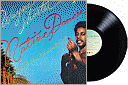
Like most people of my generation I collected vinyl record albums for years. My albums experienced incredible heat in a house fire in 1982 and were mostly warped beyond playable. Even though I had ultimately converted my music listening to cassette and then digital—for some reason I kept these albums for 30 years and finally decided to get rid of them in 2015. Before trashing them I made a list so I would always know what albums I had owned. Here is that list of record albums. I was surprised that some of my favorite albums were not here when I made this list, so apparently I had purchased them as CDs. Many of the songs on these albums have been ripped to digital MP3s and put on an iPod and now my smartphone. |
|
| My music listening is totally digital now, primarly on a headset connected to my phone or on my PC. I did get into CDs when they came out, mostly in my car, and since my stereo system wasn't getting used I took my turntable & speakers to the "swap-area" at the dump, and when I set each one down someone immediately walked off with it—I guess the days of stereos are not over, but I don't even have a music system hooked up in my house anymore. |

 Reeds -
Keyboards -
Trumpet -
Bass -
Drums -
Guitar -
Instruments -
Singers -
Groups -
Composers
Reeds -
Keyboards -
Trumpet -
Bass -
Drums -
Guitar -
Instruments -
Singers -
Groups -
Composers
Although decades have passed, some of my greatest musical euphorias were experienced in the mid-1970s, at a time when I was studying music in
college and I think improvisational music reached its peak. One of my favorite groups will always be  John McLaughlin's Mahavishnu Orchestra (videos), and I am still totally amazed at how good they were. As a jazz aficionado I
acquired an extensive collection of recordings by John Coltrane (in 2017 I was wearing a Trane t-shirt and somebody asked me if it was for the
manufacturing company), and I spent many hours listening to Trane and other tenor players who were greatly influenced by him, like
Pharoah Sanders,
Archie Shepp,
Wayne Shorter,
Dewey Redman, and
Sam Rivers. John McLaughlin's Mahavishnu Orchestra (videos), and I am still totally amazed at how good they were. As a jazz aficionado I
acquired an extensive collection of recordings by John Coltrane (in 2017 I was wearing a Trane t-shirt and somebody asked me if it was for the
manufacturing company), and I spent many hours listening to Trane and other tenor players who were greatly influenced by him, like
Pharoah Sanders,
Archie Shepp,
Wayne Shorter,
Dewey Redman, and
Sam Rivers.
Listed below are some of the people who have really moved me through the years. The musicians listed by instrument are jazz musicians; non-jazz musicians and groups are listed at the end. Some of the groups may no longer exist and sadly, some of the musicians have passed away d (see In Memoriam), but I still want to list them here because they will always rank as some of my favorites. There are also some musicians listed below under 60s music. See videos by many of these artists at Music videos. |
 |
 |
The logo is a link to each artist's page at
All Music Guide for the discographies, cross-reference links,
and song previews. (Periodically AMG reorganizes their website and some of these links stop working. I try to correct them when I notice this.) |
| Name | |
artist name is a link to them on Wikipedia. |
 |
|
I have links to some of the artist's videos on YouTube. |
 |
|
There is a website for artist. |
| d | |
Artist is deceased (see In Memoriam below) |
| Reeds, flute |  |
John Coltrane d – tenor, soprano Pharoah Sanders d – tenor, sopranoArchie Shepp – tenor, soprano tenor, sopranoJoe Farrell d – tenor, soprano, fluteWayne Shorter d – tenor, soprano tenor, soprano Sonny Rollins – tenorDewey Redman d – tenorSam Rivers d – tenor, soprano, fluteJoe Henderson d – tenorBruce Johnston – bari sax
took a great bari sax solo on Macarthur Park by Maynard FergusonJohn Surman – bari, sopranoSonny Fortune d – soprano, alto, tenor, bariDavid Murray – tenorHamiet Bluiett d – bariAzar Lawrence – tenorOliver Lake – alto, soprano, fluteHenry Threadgill – alto, fluteAnthony Braxton – alto, soprano, fluteJulius Hemphill d – alto, fluteHubert Laws – fluteArthur Blythe d – altoJohn Gilmore d – tenor sax, bass clarinet | ||
| Keyboards |  |
Chick Corea d Keith Jarrett McCoy Tyner d Bill Evans d Herbie Hancock Lyle Mays dStanley Cowell dJan HammerBarry_MilesJoe Bonner dAndrew Hill d Charles Earland d – jazz organistArt Tatum dBud Powell dRandy Weston dThelonius Monk dBarry Harris dCecil Taylor dDon Pullen dMuhal Richard Abrams dMilcho Leviev dGabriela Montero
– an incredible concert pianist who also improvisesStu Goldberg | ||
| Brass (trumpet, trombone) |  |
Miles Davis d – trumpetCharles Tolliver – trumpetFreddie Hubbard d – trumpet, flugelhornWynton Marsalis – trumpetCharles Sullivan – trumpet, flugelhornMaynard Ferguson d – trumpetJon Faddis – trumpetRandy Brecker – trumpet, flugelhornLester Bowie d – trumpet, flugelhornEnrico Rava – trumpetBill Watrous d – trombone | ||
| Bass |  |
Miroslav Vitous Stanley Clarke Dave HollandAlex Blake Cecil McBee Ron Carter - played with Miles Davis and many othersEberhard WeberEddie Gomez Gary Peacock d Avishai Cohen Richard Davis dFred Hopkins d Stuart HammBrian Odgers dCharlie Haden d Jaco Pastorius d Sirone d – some great photosVictor Wooten Art Davis dJean-Francois "J.F." Jenny-Clark d | ||
| Drums, percussion |  |
Billy Cobham Tony Williams d Jack DeJohnetteAirto MoreiraElvin Jones dSunny Murray dArt Blakey dMax Roach dMitch Mitchell dKeith Moon d
| ||
| Guitar |  |
John McLaughlin Pat Metheny  Pat Metheny video with Kenny G remarks (uses RealPlayer)Pat's initial message board comments – Go Pat!Message board thread on Pat's comments – This gets hot!Allan Holdsworth dDavid Gilmour Guitarist/Singer in Pink FloydAl Di Meola Carlos Santana Clarence White d – the best accoustic guitarist I ever heard (he played guitar for the Kentucky Colonels, then The Byrds, where I saw him)Bruce Langhorne d – Bruce recorded on guitar with many artists in the mid-60s including Bob Dylan, Joan Baez, and Richard & Mimi FariñaJohn Abercrombie dJeff Beck d Michael Bloomfield dGeorge Benson Tal Farlow d Biréli Lagrène (his name spelled here with the French accent codes)Paul Gilbert Eddie Hazel d – played guitar on Maggot Brain by Funkadelic
 | ||
| Other instruments |  |
2Cellos – Luka Sulic and Stjepan Hauser are great cello playersYo-Yo Ma – Great cello playerJerry Goodman – rock violin, he played for The Flock and Mahavishnu OrchestraBela Fleck – banjoRichard Galliano – accordianMidori – violin, she recorded Paganini's 24 Caprices as a teenagerJean-Luc Ponty - violinCharles Earland d - organ
| |||
| Singers |  | (great performers or voices) |
Alanis Morissette Carole KingJewelElton JohnBill Medley – The Righteous BrothersMadonna Linda RonstadtDiana RossDionne WarwickRichie Havens dJohn Sebastian – leader of The Lovin' SpoonfulNina Simone dJoni MitchellJoan BaezFlora Purim – married to Airto MoreiraMaria MuldaurGlen Campbell dRichard Harris dShania TwainChristina AguileraJesse Colin Young – lead singer of The YoungbloodsMilton Nascimento Leon Russell dStevie Nicks – sang with Fleetwood MacRoberta Flack dJackie DeShannonStevie WonderGrace Slick – sang with Jefferson AirplaneWhitney HoustonVan MorrisonDave MatthewsSheryl CrowBob SegerIrene Cara dShakiraBono – Sang with U2Dusty Springfield dTony Bennett dDan Fogelberg dPeter FramptonBarbra StreisandDon Henley – Eagles drummer, singerTimothy B. Schmit – Eagles bassist, singerDavid Bowie dTeddy Pendergrass d – singer in Harold Melvin & the Blue NotesLisa LoebDidoBee Gees (Robin d, Maurice d) Joe Cocker dTom Petty dBob DylanNeil YoungOdetta dGloria Estefan – Miami Sound MachineNico dFontella Bass dSam Cooke dSadeCleo Laine – a British singer with a huge rangeLeon Thomas dJoe Lee Wilson dEtta James dColin HayGladys Knight – GN and The PipsGloria GaynorKenny Rogers dDolly PartonJohnny Rivers Lou Reed dIan Tyson d – Ian & Sylvia, great Canadian folk singers Yma Sumac d – a Peruvian singer with a vocal range of five octavesBillie Holiday dLouis Armstrong dJanis Joplin dDonna Summer dLee Ann WomackMelanie MartinezJackson Browne - singer, songwriterFifth Dimension - the singing groupGerry Marsden d – Gerry and the PacemakersCrystal GayleHarry Nilsson dDesmond Dekker d | ||
| Groups |  |
Fleetwood Mac The Eagles 2Cellos (Luka Sulic & Stjepan Hauser)Crosby, Stills, Nash & Young (Crosby d) Earth, Wind, and Fire (Maurice White d) – a vocal groupMahavishnu Orchestra
(John McLaughlin and many others)Moody Blues (Graeme Edge d, Ray Thomas d, Clint Warwick d) Air (Henry Threadgill, Fred Hopkins d, Steve McCall d)Art Ensemble of Chicago (Lester Bowie d, Malachi Favors d, Joseph Jarman d, Phillip Wilson d) World Saxophone Quartet (Oliver Lake d, Hamiett Bluiett d, David Murray d)Return to Forever (Chick Corea d, Joe Farrell d) – Chick Corea's groupWeather Report (Joe Zawinal d, Wayne Shorter d, Jaco Pastorius d, Don Alias d) The Youngbloods (Jerry Corbitt d)Pink Floyd (Syd Barrett d, Richard Wright d) ChicagoSantanaMoby Grape (Skip Spence d)Electric Light Orchestra The Byrds (Gene Clark d, David Crosby d, Michael Clarke d, Gram Parsons d, Clarence White d, Skip Battin d) – here is a Byrds Family Tree someone put togetherBeatles (John Lennon d, George Harrison d)Rolling Stones (Brian Jones d, Charlie Watts d)The Bee Gees (Robin Gibb d, Maurice Gibb d)The Eagles (Glen Frey d)Tin Hat TrioBéla Fleck & the FlecktonesBill Monroe d – the father of bluegrass musicDavid Lindley d – I first saw him with his band Kaleidoscope at a rock festival in 1969The Velvet Underground (Lou Reed d, Nico d, Sterling Morrison d)The Who (Keith Moon d, John Entwistle d) | ||
| Composers |  |
Leonard Bernstein dHenry Mancini dAndrew Lloyd WebberChristopher Tin Tin Works – good music all the timeJohann Sebastian Bach dFrederic Chopin dLudwig van Beethoven dJohann Pachelbel d

|
I collected record albums for years, back when I listened to music on a turntable. (Now all my music is digital and I don't have a turntable any more.) Most of my favorite albums were recorded in the early 1970s, when I was
studying jazz at
All these albums have such musical virtuosity that decades later I still enjoy listening to them immensely—now "ripped" from the
original vinyl recordings to digital and put on my smartphone. Click on the album cover or album title to get more info.
Now I listen to songs from many of these albums on my smartphone with earbuds. |

|
Sadly not every artist whose music I love is still with us. R.I.P. these fabulous artists and long live their legacies.
Here are some of those who have passed on in my lifetime, many that I had the privilege of seeing perform live. If you look at the music I listen to on my phone (My Songs) you'll see that I still listen to a lot of them regulary. These are primarily musicians but there are some composers and others included. The names are links to Wikipedia. |
||
|
| |||||||||||||||||||||||||||||||||||||||||||||||||||||||
|
Playlists

|
|||||||||||||||||||||||||||||||||||||||||||||||||||||||
 I listen to my music on my smartphone in playlists that I
create in iTunes (Apple software that I run on my Windows PC). I also access the music on my phone using Bluetooth on my car
radio. These are smart playlists, meaning the song does not physically exist on a playlist—each playlist just has pointers
to the songs. I configured them using iTunes columns Genre, or a specific value I put in an unused
column called Grouping. Multiple values in Grouping will put a song on multiple playlists. Please note I use "contains" (has) and
"is" (equals) when validating set values. Sometimes I just select Songs and put it on random play. I have an Android phone and
use iSyncr software to transfer the songs and playlists from iTunes
to my phone. After years of using wired earbuds (which I carry in my pocket) I have been using wireless earbuds that last few years (which have to be charged). I listen to my music on my smartphone in playlists that I
create in iTunes (Apple software that I run on my Windows PC). I also access the music on my phone using Bluetooth on my car
radio. These are smart playlists, meaning the song does not physically exist on a playlist—each playlist just has pointers
to the songs. I configured them using iTunes columns Genre, or a specific value I put in an unused
column called Grouping. Multiple values in Grouping will put a song on multiple playlists. Please note I use "contains" (has) and
"is" (equals) when validating set values. Sometimes I just select Songs and put it on random play. I have an Android phone and
use iSyncr software to transfer the songs and playlists from iTunes
to my phone. After years of using wired earbuds (which I carry in my pocket) I have been using wireless earbuds that last few years (which have to be charged).
Here are my playlists and the iTunes settings for each:
 Carrying my earbuds . . . Carrying my earbuds . . .
|
| Reference & reviews |
All Music Guide – a highly cross-referenced database of music and musicians with sample cuts Yahoo Music
 ARTIST direct Network – a searchable music database with sample cuts
 Jazzbo Notes
 Sing365.com – a huge database of pop music and musicians
 Wilson & Alroy's Record Reviews – "We listen to the lousy records so you don't have to."
 Restructures: Creative Music Forum – Artist info & discographies
 Zookeeper Online – Stanford radio station KZSU music database
 Songfacts – a searchable database of song information compiled by radio professionals and music enthusiastsList of online music databases
| Jazz |
AACM – Association for the Advancement of Creative Musicians Jazz Corner
 All About Jazz
 Smithsonian Jazz – very extensiveJazz Online
 Europe Jazz NetworkJazzVisionsPhotos.com – Michael Wilderman's Jazz Photo/Graphics
 Jazzhouse.org – The Jazz Journalists Association
 Welcome to 52nd Street Jazz – reviews, discussions and news about the world of Jazz!
 freejazz.org - Freedom in Music – an avant garde music discussion group
 Jazz Education: A Timeline – recommended to me by an after school class in New York
| Festivals |
Montreux Jazz Festival Festival Finder: Music Festivals of North America
| Education |
 Berklee College of MusicBerklee Today – the monthly magazine
 New England Conservatory of Music
| Purchasing sites |
OmniTone – my favorite online CD storeCD Universe – this online CD store has song samples Classic 45's – rare vinyl records on the web
 Barnes & Noble.com Music – listen to samples of selections on CDs they sell
| Assorted links |
 Aganaze.com – Aganaze is my brother's partner
 BEATLES.COM
 The Internet Beatles AlbumList of Beatles' songs by singerThe Complete Works of the Rolling Stones 1962 - 2005
 Innerviews® - Music Without Borders
 One Hit Wonder Central
 Am I Right – Making fun of music. One song at a time . . .
 Lyrics BoxDOWNTOWNMUSIC.NET || photo gallery – artist photos
 Second Hand Songs – find out who performed the original version of a song, or who covered it
 Traffic jams – an article in the Boston Globe stating that [music] "releases chemicals that create a sense of happiness and well-being in the brain"Playing for Change – a multimedia movement created to inspire, connect, and bring peace to the world through music
 Wolfgang's Vault – where live music lives
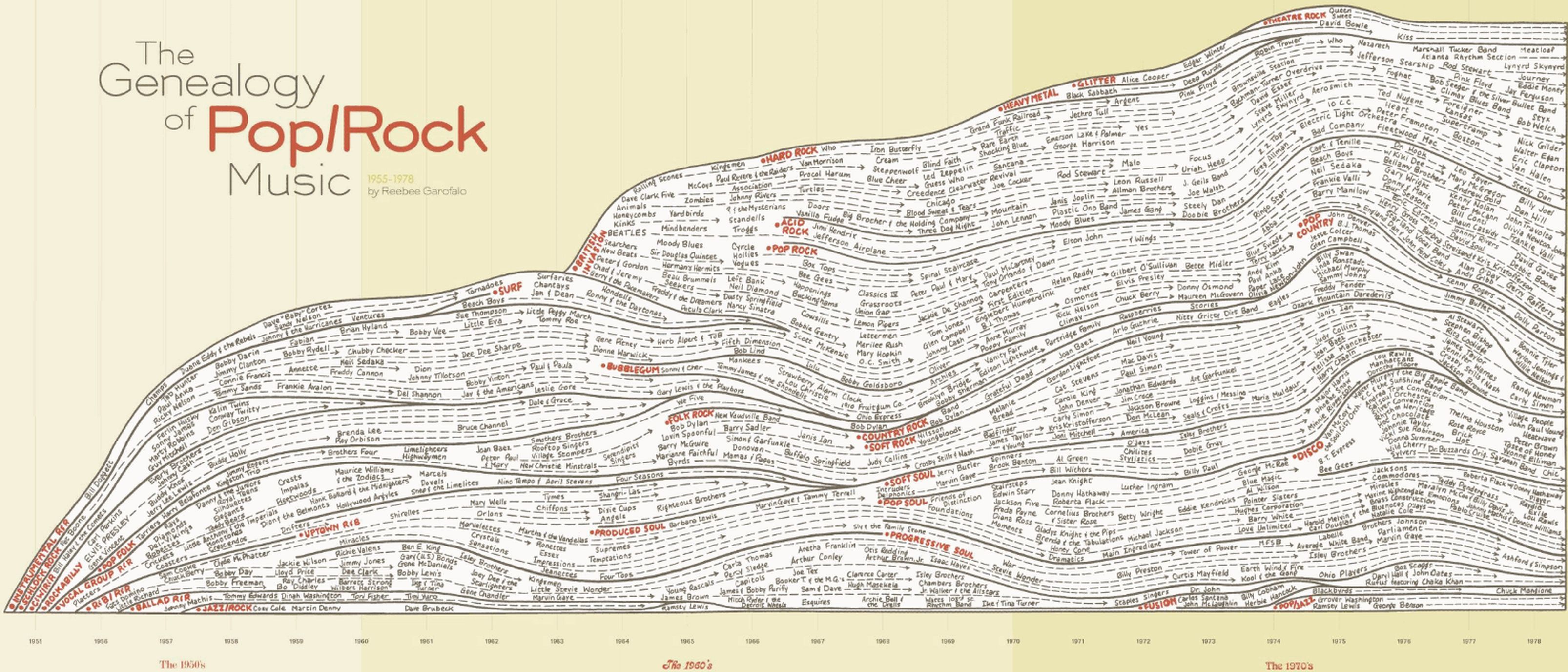 The Genealogy of Pop/Rock Music – a really cool graphicPlay Me - I'm Yours – pianos placed on the streets in cities to be played by anybody!see on YouTube Pay to Play – strict enforcement of copyrights jeopardizing live music in small venues
 ~The Music Room~ – listen to jukebox hits from the 40s through the 90s
 The Jazz Photography of Richard Laird Laird was the bass player in the Mahavishnu OrchestraDiscogs – Database and Marketplace for Music on Vinyl, CD, Cassette and More
 Find the #1 Song on the Day You Were BornLouis A. Gentile Piano Service – he's tuned our piano a few times over the years
 Songs of War in Vietnam – by Ike Pappas of CBS NewsDownload RealPlayer
 Windows Media  |
 Windows Media Player downloadWindowsMedia Guide
 Windows Media Player Solution Center
| Streaming audio (see Stream an audio file for more on streaming) |
 SHOUTcast.com – Nullsoft's distributed streaming audio links (see Internet Radio in Winamp)SuperKeyword Jukebox
 JazzFM.comJazz After Hours
 Live Radio en Direct Tuner Virtuel - COMFM – Live FM around the worldKZSU 90.1FM Stanford University – see program schedule
 KMHD - 89.1FM, Gresham, OR – Jazz 24 hours/day
 Jazz24.org – KPLU - 88.5FM, Seattle, WAKBEM - Minneapolis, St. Paul – Jazz88fm.com
 National Public Radio (NPR) Music

| I love the freedom ringtones give you to personalize your cellphone, so when someone calls you know it is your phone ringing. You can
even have different ringtones for different callers. Try to use ringtones as unique as possible so you immediately recognize them because you
don't want to think your cell is ringing when someone else's is. There are many websites that allow you to purchase and download ringtones
directly to your phone, but if you want a really unlimited selection you can make your own from any song on your PC and transfer them to your
phone (see below).
Here are some ringtones I made from songs I like (I use Goldwave, a shareware audio editor). They are small segments of the original songs (hopefully this prevents copyright infringement)—some are the intros to the songs and some are instrumental sections I cut and edited—I didn't include any singing because I don't like voices on phone rings. I usually like ringtones that start softly and build so they are not startling when they go off. The ones listed here are typically 15-20 seconds long (saved as 96kbps and mono to decrease size) and they will loop on a cellphone so the end should segue into the beginning. Click on a song to play it—to copy a song to your computer right click on the title and choose Save Link/Target As. |
| Pop/Rock |
Dancing in the Moonlight – King Harvest
(when my wife calls from home or her cellphone I hear this)House of the Rising Sun – The Animals (my son Alex's unmistakable ringtone)She's a Rainbow – Rolling Stones (my son Ben's ringtone – Nicky Hopkins piano intro)A Song For You – Leon Russell (my mother's ringtone—she often calls when I am playing tennis and I hear this coming from my tennis bag on the side of the court)Gimme Shelter – Rolling Stones (great gradual crescendo at beginning)That's the Way of the World – Earth, Wind & FireFoolish Games – Jewel (my friend Jim's ringtone)In My Life – The Beatles (my friend JoAnne's ringtone—producer George Martin's piano solo)Shine On You Crazy Diamond – Pink Floyd (sometimes my default ringtone—I've never heard this on another cell)Wildfire – Michael Martin Murphey (sometimes my default ringtone)A Whiter Shade of Pale – Procol HarumClassical Gas – Mason WilliamsThese Days – Nico (Jackson Browne plays guitar on his song)MacArthur Park – Richard Harris (Jimmy Webb plays piano on his song)Darkness, Darkness – The Youngbloods (fiddle by Charlie Daniels)Us and Them – Pink FloydEmbryonic Journey – Jefferson Airplane (Jorma Kaukonen on guitar)You Are The Sunshine Of My Life – Stevie WonderAnother Star – Stevie WonderPurple Haze – Jimi HendrixDoes Anybody Really Know What Time It Is? – ChicagoWake Up Everybody – Harold Melvin & The Blue NotesRhiannon – Fleetwood MacBeautiful Day – U2Hotel California – The EaglesDesperado – The EaglesThat's the Way of the World – Earth, Wind & FireTiny Dancer – Elton JohnBetty Davis Eyes – Kim CarnesHandbags and Gladrags – Rod StewartMaggie May – Rod StewartSecret Agent Man – Johnny RiversVenus – Shocking BlueIt's Friday I'm In Love – The CureStay With Me Tonight – Jeffrey OsborneStayin' Alive – Bee GeesCan't Get You Out Of My Head – Kylie MinogueCause We've Ended As Lovers – Jeff BeckWildfire – Michael Martin MurpheySecret Garden – Bruce SpringsteenThank U – Alanis MorissetteA Fifth of Beethoven – Walter MurphyYou Can't Always Get What You Want – Rolling StonesI Can't Make You Love Me – Bonnie RaittHelplessly Hoping – Crosby, Stills & Nash
| Jazz/Fusion |
Memories of Tomorrow – Keith Jarrett (Part II C, from his album, The Köln Concert)In a Silent Way – Miles Davis (sometimes my default ringtone)Lilia – Milton Nascimento (from a live concert video)Lilia – Herbie Hancock (the intro to the song on the Wayne Shorter album, Native Dancer)Stolen Moments – Oliver NelsonWaltz For Nicky – Richard GallianoAn Evening With Vincent Van Ritz – Eberhard Weber (one of my favorite bass players)Tangaria – Richard Galliano (extracted from the video)Icarus – Paul Winter ConsortPremonition – Andrew HillTheme de Celine – Art Ensemble of ChicagoAll About Love – Larry Dunn interlude on Earth, Wind & Fire albumOn The Nile – Music Inc.You're Everything – Chick CoreaCaptain Marvel – Chick CoreaReturn To Forever – Chick CoreaThe Gathering – Joe Bonner (his intro to the Pharoah Sanders song)Love Is Everywhere – Joe Bonner (from his piano solo in the Pharoah Sanders song)Samba da Rua – Archie SheppBass Folk Song – Stanley Clarke (his intro to song on Joe Farrell album, Moon Germs)Phase Dance – Pat MethenyFunky Tonk – Keith Jarrett (from his solo on the Miles Davis album, Live-Evil)Giant Steps – McCoy TynerMeeting of the Spirits – Mahavishnu OrchestraCelestial Terrestrial Commuters – Mahavishnu Orchestra
| Other |
Chopin Waltz Opus 64Moonlight Sonata – Movement 1 from this fantastic Beethoven pieceCaprice No 1: Andante – Midori (from her album, Paganini, 24 Caprices)Pachelbel Canon in DThe Sacrifice – Michael Nyman (from "The Piano" soundtrack)Eight Miles High – Leo KottkeSomewhere Over The Rainbow – Israel Kamakawiwo'oleThe Impression That I Get – The Mighty Mighty BosstonesSailor's Hornpipe – Bill Monroe (Bill Keith on banjo)Star Trek Communicator – "Beam me up, Scotty."Twilight Zone – the theme song from the TV showSilent ringtone – I use this where my phone requires a ringtone (e.g. email) but I don't want to hear anythingSoft Double – the default ring on my phone (I found this online)There are several ways to put a ringtone from your PC on your cellphone:
|

 (find more 60s links on the Favorites page)
 Because I was a teenager in the 1960s, the music of that time played a big part in my life. Meet the Beatles was the first vinyl record album I bought to play on
my stereo. Like many young people of that era I was in a rock band when I was in college that existed
primarily for our own entertainment, although we did play a few gigs at fraternities and sororities on campus. and once at the local high school.
(After decades apart, in 2015 I reconnected with the lead guitar player in this band on Facebook and we've seen each other a few times when I was
in Boise.) When I lived in Seattle I went regularly to concerts by the top West Coast groups of
the day at the Eagles Auditorium. Because I was a teenager in the 1960s, the music of that time played a big part in my life. Meet the Beatles was the first vinyl record album I bought to play on
my stereo. Like many young people of that era I was in a rock band when I was in college that existed
primarily for our own entertainment, although we did play a few gigs at fraternities and sororities on campus. and once at the local high school.
(After decades apart, in 2015 I reconnected with the lead guitar player in this band on Facebook and we've seen each other a few times when I was
in Boise.) When I lived in Seattle I went regularly to concerts by the top West Coast groups of
the day at the Eagles Auditorium.
One interesting experience I had was with my roomate Bill. He was friends with the Retina Circus, who did the weekly light shows at the Eagles Auditorium rock shows (another roomate, Andy, joined the Retina Circus and he is in that video), and they did the show for the Byrds in Seattle and would also do it in Spokane the next night. Bill was asked to do the stage lighting at the Spokane show and I accompanied him. When we were setting up the lighting and I stood at the mic's while he adjusted the spotlights Byrds' fans were starting to arrive and assumed I was a Byrds' roady. They came up to me at the stage and started asking me questions about Roger McQuinn and other Byrds' members. Of course I played along like I was buddies with the band. |
Sky River Rock Festival
 In 1968 (the year before Woodstock) I joined 20,000 other "social revolutionaries, hippie communalists, psychedelic evangelists, musicians, and music fans" to attend one of the world's first outdoor
rock festivals, a 3-day affair in a pasture near Sultan, WA, a small town Northeast of Seattle. ("Rock festival" was still a somewhat new and unfamiliar term and when I told my mother I had gone to
a "rock festival" she told her friends I had developed an interest in geology). My buddy and I had originally planned on staying for all 3 days, but woke up the first night in our sleeping bags
getting wet when it rained, so we went home and commuted every day from our homes in Seattle. Not every band listed on the poster showed up, but there was still a tremendous amount of great music.
In 1968 (the year before Woodstock) I joined 20,000 other "social revolutionaries, hippie communalists, psychedelic evangelists, musicians, and music fans" to attend one of the world's first outdoor
rock festivals, a 3-day affair in a pasture near Sultan, WA, a small town Northeast of Seattle. ("Rock festival" was still a somewhat new and unfamiliar term and when I told my mother I had gone to
a "rock festival" she told her friends I had developed an interest in geology). My buddy and I had originally planned on staying for all 3 days, but woke up the first night in our sleeping bags
getting wet when it rained, so we went home and commuted every day from our homes in Seattle. Not every band listed on the poster showed up, but there was still a tremendous amount of great music.
The performers who were there included
|
Sky River Rock Festival and
Lighter than Air Fair
Sky River Rock Festival
Festival photos
A 30-year review)
Sky River II Monterey International Pop Music Festival – June 16, 17, and 18, 1967WoodstockphotosA list of Haight-Ashbury era bandsJimi Hendrix (deceased, 1970)UniVibes – International Jimi Hendrix MagazineJanis Joplin (deceased, 1970)Country Joe & the Fish – Gimme an F!Country Joe's PlaceGrateful Dead (Jerry Garcia deceased, 1995)Moby GrapeJefferson AirplaneJorma Kaukonen's Web Site!The Doors (Jim Morrison deceased, 1971)Buffalo Springield – members included Stephen Stills, Neil Young, and Jim MessinaNeil YoungCrosby, Stills, Nash, and YoungCreamThe Yardbirds – Eric Clapton, Jeff Beck, and Jimmy page all played for the YardbirdsSteve Miller BandThe ByrdsBob DylanDonovanJohn Mayall – band members at various times included Eric Clapton, Mick Fleetwood, and John McVieThe YoungbloodsJesse Colin YoungDan Hicks and His Hot LicksJim Kweskin Jug BandMaria MuldaurGeoff MuldaurKaleidoscopeDavid LindleyChris DarrowCrome Syrcus – a band I remember from my Seattle daysIke and Tina Turner RevueSixtiesRock.com100 Greatest Psychedelic Songs – you can listen to these here
| Multimedia search engines |
| These search engines allow you to search for songs on sites like mine (or like mine used to be). The results typically provide the ability to listen to songs from the sites where they are found. If the link to play the song goes diredtly to the song file, to save a copy of the song put the mouse pointer on the link and press the right mouse button, and from the context menu choose Save Target/Link As. If the link goes to a webpage or player and not directly to the song, you can look in your browser cache after the song has played and you may be able to copy it from there. Sometimes you have to rename it and put an extension (usually .mp3) on it. |
Youtube Dogpile
 Project Playlist
 Soundflavor Music Search
 SeeqPod
 Rhapsody.comYahoo! Search - Audio
 MP3sHits.com
 Mp3Realm - Mp3 Search
 Mp3Raid.com
 beeMP3Real SeachThe MIDI Farm
| Peer-to-peer (p2p) |
| These MP3 search applications, pioneered by Napster, allow you to find shared files offered by others using software that you install on your PC. They are the best way get your own copies of audio files, although the RIAA is forcing the government to crack down on this process (I had to stop sharing). Also, some are rumored to install spyware (hidden software tracking your web-surfing habits) on your PC, and you can also download viruses, so be cautious. If you do frequent downloads, it is always a good idea to run anti-virus and anti-spyware programs regularly to keep your system clean. Many of these are clients of Gnutella, a large open protocol distributed file-sharing network. |
 FrostWireGnucleusBearShareWarezMorpheusNapster – no longer does free file-sharing
MP3

songs below 
|
"The real threat of MP3 music piracy—to listeners and, conceivably, democracy itself—is the music industry's reaction to it." — Charles C. Mann, The Atlantic Monthly
MP3 tips
MP3 tools
MP3 songs
|
| RIAA (Recording Industry Association of America) |
The above quotation ("The real threat...") is from an article, "The Heavenly Jukebox", that includes a history of the MP3, which is one of the digital formats for music that has become very popular
on the Internet. Because they are ubiquitous and you can download them for free, MP3s have the RIAA all freaked out. In
2001 the RIAA took peer-to-peer file-sharing company Napster to court and put them out of business, and in 2003 they started
going after individual "major offenders", those who offered more than 1,000 songs to others for downloading (eventually this included
me). The RIAA has the rather short-sighted view that being able to download MP3 songs for free will keep
people from purchasing the CDs. MP3s actually provide a great way to sample songs before buying a CD, and people will continue to make purchases
if the music is good. As far as MP3s being a threat to the royalty income the musicians receive from CD sales, according to the previously
mentioned Atlantic Monthly article, if it exists at all this income is miniscule.
This is from the testimony in the trial of a Minnesota woman which resulted in her being fined $222.000 for sharing music. It looks like the RIAA are even bigger idiots than imagined. One can also be introduced to a new artist via MP3s, especially someone esoteric like Tin Hat Trio, who lacks the heavy marketing of the more commercial artists. I discovered them almost by accident (on a music system in Starbucks no less), yet I still purchased Tin Hat Trio's CDs, even though I knew I could download some of their MP3 music for free. Or suppose you have a song on a CD that you want to share with someone who lives far away from you. You can convert the song from the CD (rip it) to an MP3 file and send it as an email attachment, which may even encourage that person to go out and buy the CD, thereby increasing sales. |
|||
MP3 tips |
|
Extract
Convert analog
Shrink
Create WAV
Suppress prompt
Stream
ID3 tags
|
|
|
I don't know where the MP3 litigation will ultimately end up, but in the meantime MP3s provide some interesting technical
solutions. For instance, when I wanted to put a song I liked on a cassette tape to listen to in my Walkman (the old days), I could only
locate it in the MP3 format (it was also made on 7" vinyl but I couldn't find that). To get my MP3 on tape I had to
burn it to a CD, which I then played on a regular stereo system and recorded it to tape. For mobile music I use my smartphone
now so I still convert many individual songs to MP3s from CDs or vinyl recordings
(see Convert a record or tape) to load them.
As MP3 usage and the software to do things with them gets more common, some of the tips I put here are no longer needed, and I will try to keep this section up−todate. Many of these tips make reference to various software I use (names in green italics). See see MP3 tools for more on these. |
|
 YouTube to MP3 Converter YouTube to MP3 Converter
|
|||||||||||||||||||||||||||||||||||||||||||||||||||||||

These are some of the tools I have used to manipulate MP3s. Some shareware/freeware may contain spyware, so use caution when installing them.
|

MP3 songs
 info & tips above
  MIDI files below
I also have Videos
MIDI files below
I also have Videos 
|
 My songs – songs I currently listen to on my smartphoneSongs that used to be listed here
| For years I had playable MP3s listed on my website, until I received the following in an email from my web-hosting provider. I have complied to prevent my website from being shut down. | |||||||||
|
|||||||||
|
I have moved my website to another hosting company since receiving that threat, but to play it safe I am still not sharing downloadable music here, and it appears I removed these files just in time, because a week later I read this story about someone who was found guilty of sharing music "illegally" and fined $220,000! Some the songs I shared I actually ripped from vinyl albums that I owned (making me the legal owner), but most of the songs were not acquired by purchases so I removed them all. My music has always been one of the big draws to my website, so I am taking away something that people loved, and after awhile the music search engines will no longer show me having these songs, so I know the number of my visitors will decrease. I am still sharing ringtones, which I believe is still safe because they are only snippets of songs. Thank you RIAA, for improving the quality of our lives. |
|||||||||

| These MIDI (Musical Instrument Digital Interface) files are digitized, instrumental versions of the original songs. |
| Jazz |
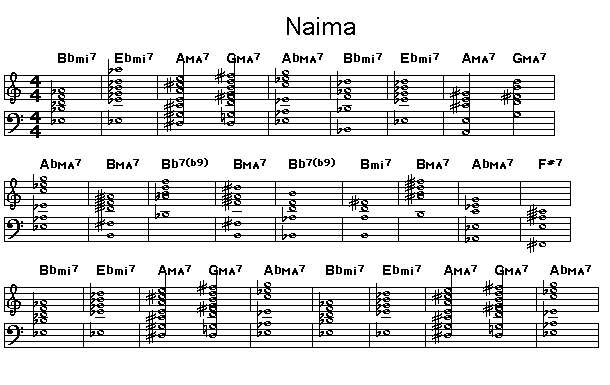
La Fiesta (85kb) - Chick CoreaSpain (24kb) - Chick CoreaAll Blues (39kb) - Miles DavisSo What (85kb) - Miles DavisJames (51kb) - Pat MethenyLove Theme from Spartacus (23kb) - Bill Evans (more here)Naima (6kb) - John Coltrane (the chord changes)| Pop/Rock |
Don't Speak (59kb) - No DoubtStayin' Alive (35kb) - Bee GeesAnji (3kb) - Paul SimonSamba Pa Ti (51kb) - SantanaIronic (43kb) - Alanis MorissetteWhen You're Gone (78kb) - the CranberriesThe Sign (35kb) - Ace of BaseKiss From a Rose (31kb) - SealI Am the Walrus (25kb) - The BeatlesHere Comes the Sun (33kb) - The BeatlesStairway to Heaven (47kb) - Led ZeppelinHotel California (72kb) - The EaglesDesperado (12kb) - The EaglesLa Bamba (34kb) - Richie ValensWhiter Shade of Pale (32kb) - Procol HarumAnother Star (113kb) - Stevie WonderStay (43kb) - Lisa Loeb| Other |
The Impression That I Get (46kb) - Mighty Mighty BosstonesThe Simpsons (18kb) - theme from the TV showPeanuts (21kb) - theme from the Charlie Brown TV showDueling Banjos (20kb) - from the movie DeliveranceIsland Music (17kb) - Reggae, steel drums, etc.Chip's Challenge (12kb) - from a game of that nameDance of the Sugarplum Fairies (16kb) - from The NutcrackerDr. Gradus ad Parnassum (31kb) - Claude Debussy


&comment=Most of my classes were in this building "150 Mass. Ave. building")


&comment=Right next door to <a href=
'picture.html?image=pics/berklee_perf_mass_ave.jpg&topcap=<i>Berklee Performance Center</i> right next to <i>150 Mass. Ave. building</i>' class='black'><i>150 Mass. Ave. building</i></a> "Berklee Performance Center")
, Wayne Shorter (soprano), Dave Holland (bass)&comment="Bitches Brew")